
Read before deciding
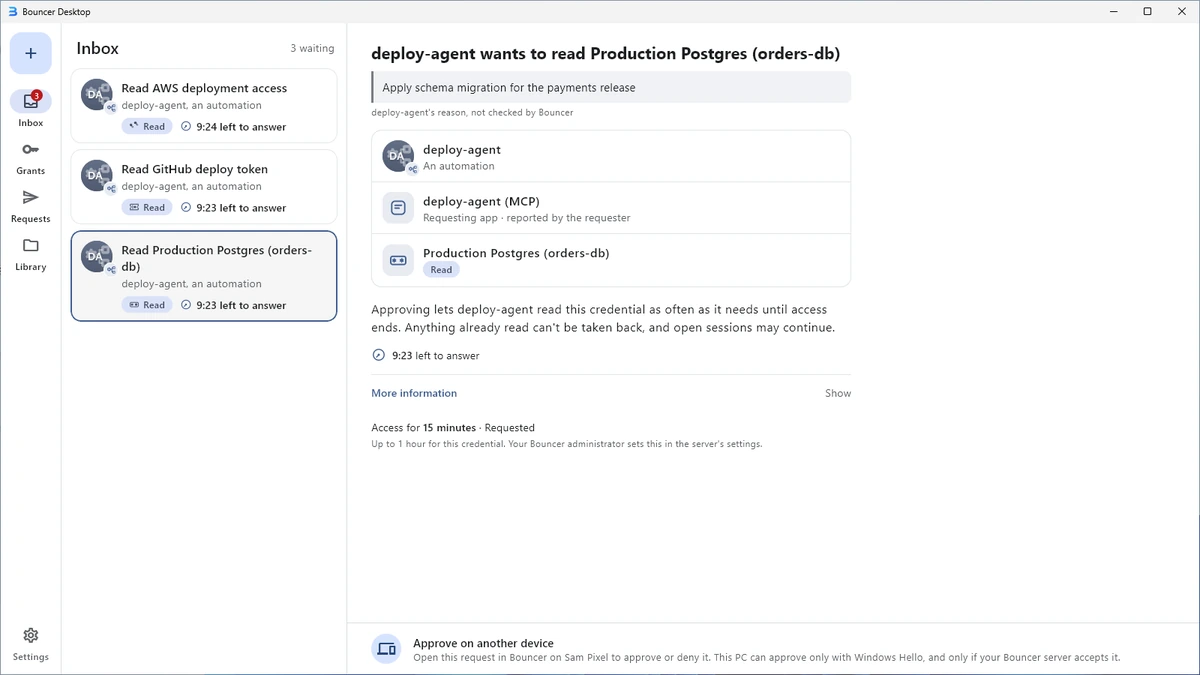
Each request names the resource, the requester, the reason and the length of access. Each detail is labelled Verified, Observed or Reported by requester, so an approver can tell what Bouncer checked.
Bouncer Vault by S6 Studios
When a person, a script or an AI agent needs a password, an API key or SSH access, it asks your Bouncer server. Where approval is required, the people responsible see the request in Bouncer, check who is asking and why, and approve it for a set time, called a grant, or deny it. When a grant ends, Bouncer stops issuing credentials for it.
Your organisation runs the server, and S6 Studios can't see your requests or secrets.

Give each agent its own identity in Bouncer. Your team decides which credentials an agent can request and when a person needs to approve access.
Once access is granted, an agent can carry on without waiting for anyone. People still make the decisions that require approval.
Store the credentials your tools already use in OpenBao, and Bouncer puts an approval step in front of them. You don't have to replace your identity system or wait for every tool to support agent identities.
Bouncer adds an approval step in front of credentials stored in OpenBao, the open-source fork of HashiCorp Vault managed by the Linux Foundation. A person reads each request and signs a decision on their own device, and the grant sets how long access lasts.
Each request names the resource, the requester, the reason and the length of access. Each detail is labelled Verified, Observed or Reported by requester, so an approver can tell what Bouncer checked.
The approver chooses how long access lasts, within the resource's limit. When a grant ends, Bouncer stops issuing credentials for it and asks OpenBao to revoke those already issued.
Each approval is signed with a key made on the approver's phone or PC. A requester's key can't sign an approval. The security model explains what the server checks on each platform.
The bouncer-mcp server lets an AI agent ask for access and wait for a person's answer. bouncer exec runs a command with the secret, without handing the value to the agent.
The approval log records requests, decisions, revocations, app views and saves, and device changes. Export it as JSON Lines for your log store.
Your organisation runs the Bouncer server next to its own OpenBao. Notifications carry only random IDs; the app fetches the details from your server.
Every request follows the same steps, whoever sends it.
The same inbox on Windows. Each detail says whether Bouncer checked it or the requester reported it, and approving signs with Windows Hello.
An administrator sets up the server once. Everyone else installs an app and connects it to that server.
Your administrator runs the Bouncer server on Linux with Docker Compose or Podman, next to OpenBao and PostgreSQL.
People who approve install Bouncer Mobile on their phone or Bouncer Desktop on Windows.
Scan the QR code your administrator shows, or paste the pairing string, to connect the app to your server.
Ask for a test secret from the command line, approve it in the app, then revoke the grant.
Free for up to 25 paired devices, with unlimited users and AI agents. Pricing details.